
Evonex Connect User Guide
The Evonex Connect User Guide has been updated to cover Android and all the new features recently released. You can download the user guide here.
What’s New?
Security Alerts for Evonex Connect: Version 1.9.2 of Evonex Connect will soon support desktop notifications for Security Alerts. This means that any Evonex Connect browser or desktop client in a Security Alert group will receive a Security Alert when it’s triggered.
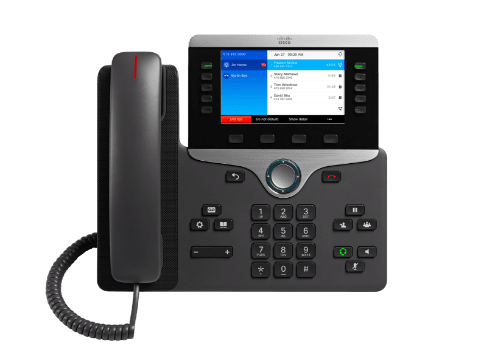
Additionally, any desk telephones associated with these clients will also alert users. Both will play the same distinctive Klaxon ringtone, and the incoming call display will feature a red background to emphasise its importance.
Spotlight on…
The Evonex phone system offers a variety of exciting features, which can make it challenging to keep track of the specific functions of each service. This section is dedicated to exploring one feature or function at a time, making it easier to learn and understand.
Barge, Monitor, Whisper (BMW)
BMW is a ‘supervisor’ feature that allows to you intrude (Barge), listen (Monitor), or coach (Whisper) on one of your team’s calls. BMW works from any managed phone, or Evonex Connect and does not need an additional licence or incur any additional costs. To ensure confidentiality across your business, anyone with “Barge Monitor Whisper Supervisor” permissions is not permitted to have another user access their calls.
What setup is required?
- Each user will need to be either set as a ‘Customer Administrator’ or have ‘Barge Monitor Whisper Supervisor’ additional permissions.
- You will need to add your phone, and the phones of the users in your team, to the same ‘Barge Monitor Whisper’ Call Group.
Barge
Barge allows you to hear both sides of the conversation, and both parties to hear you. To activate Barge during the call, press 6.
Monitor
Monitoring allows you to hear both sides of a conversation. Neither party will hear you, or will be alerted to the fact their call is being monitored. To activate Monitor, dial *86*EXTN#. If the extension number you enter is part of the same BMW group, and is on an active call, you will immediately begin monitoring the conversation.
Whisper
Whisper allows you to hear both sides of the conversation. The extension user will hear you, although the third party will not. The third party still doesn’t know the call is being monitored. To activate Whisper during the call, press 5.
Exiting back to Monitor
During the call, press ‘4’ to change from the current state back to ‘Monitor’.
Top Tips
As an alternative to *86*EXTN#, you can start Whispering immediately by dialling *865*EXTN# or you can Barge the call immediately by dialling *866*EXTN#.
The BMW service codes can be programmed under BLF keys – please ask your support team for assistance.
If either the extension or the third party end the call, the BMW will also end for the ‘Supervisor’.
If either of the following conditions are met, you’ll hear an appropriate error message and the call will not be barged, monitored or whispered:
- you don’t have permissions to use BMW
- you enter a ‘Supervisor’ extension
- you enter an invalid extension
- you enter an extension that is not in the same BMW group as you
- you enter an extension that is not on a call
- you enter an extension that is already being barged, monitored or whispered
If the ‘Supervisor’ ends the call, from any state the call will not end for the extension or the third party.
If the extension transfers the call to another extension, the BMW will end for the ‘Supervisor’.
If call recording is enabled, all three parties are recorded.

Evonex Connect User Guide
the Evonex Connect User Guide has been updated to cover Android and all the new features recently released. You can download the user guide here.
At the end of May, we released version 1.0.8 of Evonex Connect, for all platforms.
This release mainly focuses on unifying the codebase across all environments, bringing the features of v1.0.7 to Android. We’ve also introduced a couple of new features, a selection of enhancements and some important bug fixes, all listed below.
In the last week we released version 1.0.10 of Evonex Connect for iOS only. This, in conjunction with corresponding back-end fixes, has greatly improved the reliability of the iOS app. However, we’re not finished with iOS reliability updates – there will be more app and back-end fixes coming soon.
Also in this update is news of support for more Yealink DECT products, more details below.
Evonex Connect v1.0.8 release notes:

New Features
Enhancements


Fixes
Recent Portal & Platform Releases
Enhancements
Fixes
New Ordering Process – Help
The new ordering process has been live since September 2023. It’s no-longer a beta product and consequently has been promoted to the only way to place orders for new and existing customers.
For anyone who requires assistance with using the new order journey, you can access the help section by clicking the button at the top right of the portal page. In here you’ll find a video guide
a step-by-step explanation of the process with handy GIF images, and links to excel and text template files to allow you to populate an external document and simply paste the contents straight into the order page.
If you need further ordering/provisioning assistance, please contact us.
Hidden Contacts – Explained
In a recent Portal update, we added the ability for an Administrator to hide a Shared Address Book contact or Internal Address Book contact (AKA User) with a simple tick box. For a user in portal, this has the affect of hiding the telephone number(s) associated with the contact. In Evonex Connect or a desk phone, this renders the contact hidden or ‘Ex-directory’.
What are the use cases for this? Hiding a User is useful if you have set up several hunt groups on an account and you want to ensure those groups don’t appear in search results in Evonex Connect or via desk phones. Hiding a Shared contact is useful if you have two contacts for a customer – one for inbound calls and one for outbound calls – and you want to ensure the customer is not called on the wrong number. Importantly, in both cases, the contacts are hidden for search results, but they are still able to be used for inbound alpha-tagging.
Support for Yealink W80DM & W90DM multi-cell DECT
Please find attached a guide explaining the extent of support we now offer for Yealink W80DM and W90DM multi-cell DECT units. Essentially, this now means you can order Standard, Lite or Universal Licences against either one of these units and the subscriptions will be auto provisioned to the device. The necessary configuration of additional base-stations and handsets should be completed manually. All the detail you should need is in the guide, any questions please let me know.
Recent releases have brought a plethora of new features including, dark mode themes, auto-start for the desktop application, click-2-dial for the desktop application, QR code sign in on mobiles, improved settings navigation, support for ‘ex-directory’ contacts, and a raft of improvements and fixes, all of which are listed and explained below.
In the last week we released version 1.0.10 of Evonex Connect for iOS only. This, in conjunction with corresponding back-end fixes, has greatly improved the reliability of the iOS app. However, we’re not finished with iOS reliability updates – there will be more app and back-end fixes coming soon.
Also in this update, is news of support for more Yealink DECT products, more details below.
New Features
Enhancements
Fixes
Dark mode
Users can now run Evonex Connect in dark mode. This setting synchronises to their other Evonex Connect devices.
QR code sign-in on mobiles
Quickly and easily generate a QR code in your desktop Evonex Connect app which you can scan with your mobile app to securely log in. QR code generation works on Browser, Windows and macOS and scan to sign in works on iOS. Scan to sign in will follow on Android in due course.
Auto-start for the Desktop apps
Do you wish the Evonex Connect app started automatically when you login? Just enable this setting! Works for the Windows and macOS apps.
Click-to-dial for the Desktop apps
Click-to-dial has arrived! Click the below button in settings to ensure that any telephone number formatted as a TEL: link will be dialable with Evonex Connect when clicked. Works for the Windows and macOS apps. A plug-in for Web Browsers will follow in due course.
Evonex Connect User Guide
The Evonex Connect User Guide has been updated to cover Android and all the new features recently released. You can download the user guide here.
Welcome to the Evonex Product Update for May 2026.
- Highlights this month include:
- Forthcoming updates to the Evonex Authentication service – please read the details below
- The release of version 1.8.3 of Evonex Connect for all platforms
- Insights updates
- Wallboards updates
- Core Platform updates
Lastly, a reminder that the legacy Desktop Client and associated Windows Softphone are both now end-of-sale and will be end-of-life in December 2026.
Authentication Updates
Overview
We are rolling out a major update to the Evonex Authentication service. This update comprises three elements:
- Foundations for the introduction of Microsoft Single Sign-on for Customer Users and Administrators. This feature will not be available initially, but will follow on in due course.
- A refreshed and redesigned user interface for the sign-in process, with enhanced flow. This will be noticeable any time a user is required to sign-in to Evonex Connect or Portal.
- The ability for a user to choose for their 2FA one-time password to be sent to their email address rather than necessitate the use of an authenticator app.
What to expect
The instructions below apply to new sign-ins only – if you’re already authenticated when the new update rolls out, you won’t need to sign in again. If you start a new sign-in, you’ll notice that the redesigned sign-in process includes a new UI flow that applies to all sign-ins on all platforms.
- Firstly, at the login prompt, you will be asked to enter your username, then click ‘Continue’.
- Your username will be validated, and the next screen will ask you to enter your password and click ‘Sign-in’ to continue.
- At this point, enter your one-time password from your authenticator app, if required, then click ‘Sign in’.
- New users, or users who have had their 2FA reset by an administrator, will have the option to receive their 2FA one-time passcode via email if they prefer. They should select the ‘Email’ option during 2FA setup.
- When a user is required to enter a one-time passcode during sign-in, an email will be sent to their registered email address containing the passcode.
- They simply enter the passcode, and their sign-in will be granted.
New users, or users who have had their 2FA reset by an administrator, will have the option to receive their 2FA one-time passcode via email if they prefer:
- They should select the ‘Email’ option during 2FA setup.
- When a user is required to enter a one-time passcode during sign-in, an email will be sent to their registered email address containing the passcode.
- They simply enter the passcode, and their sign-in will be granted.
What do I need to do?
Nothing! This update will be automatically rolled out over the coming weeks. Take the time to familiarise yourself with the changes above and inform your customers if you feel it is necessary.
Evonex Connect v1.8.3 release notes:
Features
Call recordings now stream to your device. Call recordings are now streamed rather than downloaded in full, allowing you to start listening immediately. This results in faster access to recordings, reduced waiting time, and a smoother playback experience – particularly beneficial on slower connections or mobile networks.
Enhancements
- [All] Visual improvements to the chat renaming functionality along with support for dark mode. Brings this feature in line with the rest of the application for a more consistent user experience.
- [Mobile] Blind transfer-to-voicemail button added. Mobile users can now quickly transfer a call directly to voicemail with a single tap. This makes call handling faster and simpler when the recipient is unavailable.
- [All] ‘Contact’ filter selection dynamically updates based on the items selected. This is now consistent with the experience in the ‘Calls’ filter.
- [All] The ‘Auto-Start’ option is now enabled by default as requested by our customers. This means the application will automatically start when you log in to your device, ensuring you will not miss important calls or messages.
- [All] Various layout and UI improvements. Visual and layout improvements have been made to enhance consistency and usability across the application.
- [All] The Release Notes page will now automatically adjust to match the user’s selected theme, providing a more cohesive visual appearance.
Fixes
[All] Various stability and quality improvements. Behind-the-scenes improvements increase overall application stability and reliability. Users should experience fewer interruptions, smoother performance, and a more dependable telephony experience in day‑to‑day use.
Insights
Features
Add ‘Department’ and ‘Extn’ columns to the Itemised Calls report.
Enhancements
- Update all time-based columns on exported reports to use the hh:mm:ss format.
- Updates to the Missed Unreturned calls report to improve accuracy and sorting.
Fixes
The DND report now functions correctly for an account with no call groups configured.
Wallboard
Enhancements
- The Missed Unreturned wallboard now includes calls which have been routed to voicemail and the caller has left a message. This brings the wallboard in line with the Missed Unreturned Insights report.
- Wallboard URLs now automatically update in the event of a managed DC failover.
Platform Core
Fixes
- Fix an issue with Universal Licences where manually disabling DND for a user with scheduling applied would not consistently revert call routing as expected.
- Fix an issue with Fax-to-email calls.
Evonex Connect v1.0.8 release notes:
New Features
Enhancements
Fixes
Recent Portal & Platform Releases
Enhancements
Fixes
New Ordering Process – Help
The new ordering process has been live since September 2023. It’s no-longer a beta product and consequently has been promoted to the only way to place orders for new and existing customers.
For anyone who requires assistance with using the new order journey, you can access the help section by clicking the button at the top right of the portal page. In here you’ll find a video guide
a step-by-step explanation of the process with handy GIF images, and links to excel and text template files to allow you to populate an external document and simply paste the contents straight into the order page.
If you need further ordering/provisioning assistance, please contact us.
Hidden Contacts – Explained
In a recent Portal update, we added the ability for an Administrator to hide a Shared Address Book contact or Internal Address Book contact (AKA User) with a simple tick box. For a user in portal, this has the affect of hiding the telephone number(s) associated with the contact. In Evonex Connect or a desk phone, this renders the contact hidden or ‘Ex-directory’.
What are the use cases for this? Hiding a User is useful if you have set up several hunt groups on an account and you want to ensure those groups don’t appear in search results in Evonex Connect or via desk phones. Hiding a Shared contact is useful if you have two contacts for a customer – one for inbound calls and one for outbound calls – and you want to ensure the customer is not called on the wrong number. Importantly, in both cases, the contacts are hidden for search results, but they are still able to be used for inbound alpha-tagging.
Support for Yealink W80DM & W90DM multi-cell DECT
Please find attached a guide explaining the extent of support we now offer for Yealink W80DM and W90DM multi-cell DECT units. Essentially, this now means you can order Standard, Lite or Universal Licences against either one of these units and the subscriptions will be auto provisioned to the device. The necessary configuration of additional base-stations and handsets should be completed manually. All the detail you should need is in the guide, any questions please let me know.
Recent releases have brought a plethora of new features including, dark mode themes, auto-start for the desktop application, click-2-dial for the desktop application, QR code sign in on mobiles, improved settings navigation, support for ‘ex-directory’ contacts, and a raft of improvements and fixes, all of which are listed and explained below.
In the last week we released version 1.0.10 of Evonex Connect for iOS only. This, in conjunction with corresponding back-end fixes, has greatly improved the reliability of the iOS app. However, we’re not finished with iOS reliability updates – there will be more app and back-end fixes coming soon.
Also in this update, is news of support for more Yealink DECT products, more details below.
New Features
Enhancements
Fixes
Dark mode
Users can now run Evonex Connect in dark mode. This setting synchronises to their other Evonex Connect devices.
QR code sign-in on mobiles
Quickly and easily generate a QR code in your desktop Evonex Connect app which you can scan with your mobile app to securely log in. QR code generation works on Browser, Windows and macOS and scan to sign in works on iOS. Scan to sign in will follow on Android in due course.
Auto-start for the Desktop apps
Do you wish the Evonex Connect app started automatically when you login? Just enable this setting! Works for the Windows and macOS apps.
Click-to-dial for the Desktop apps
Click-to-dial has arrived! Click the below button in settings to ensure that any telephone number formatted as a TEL: link will be dialable with Evonex Connect when clicked. Works for the Windows and macOS apps. A plug-in for Web Browsers will follow in due course.